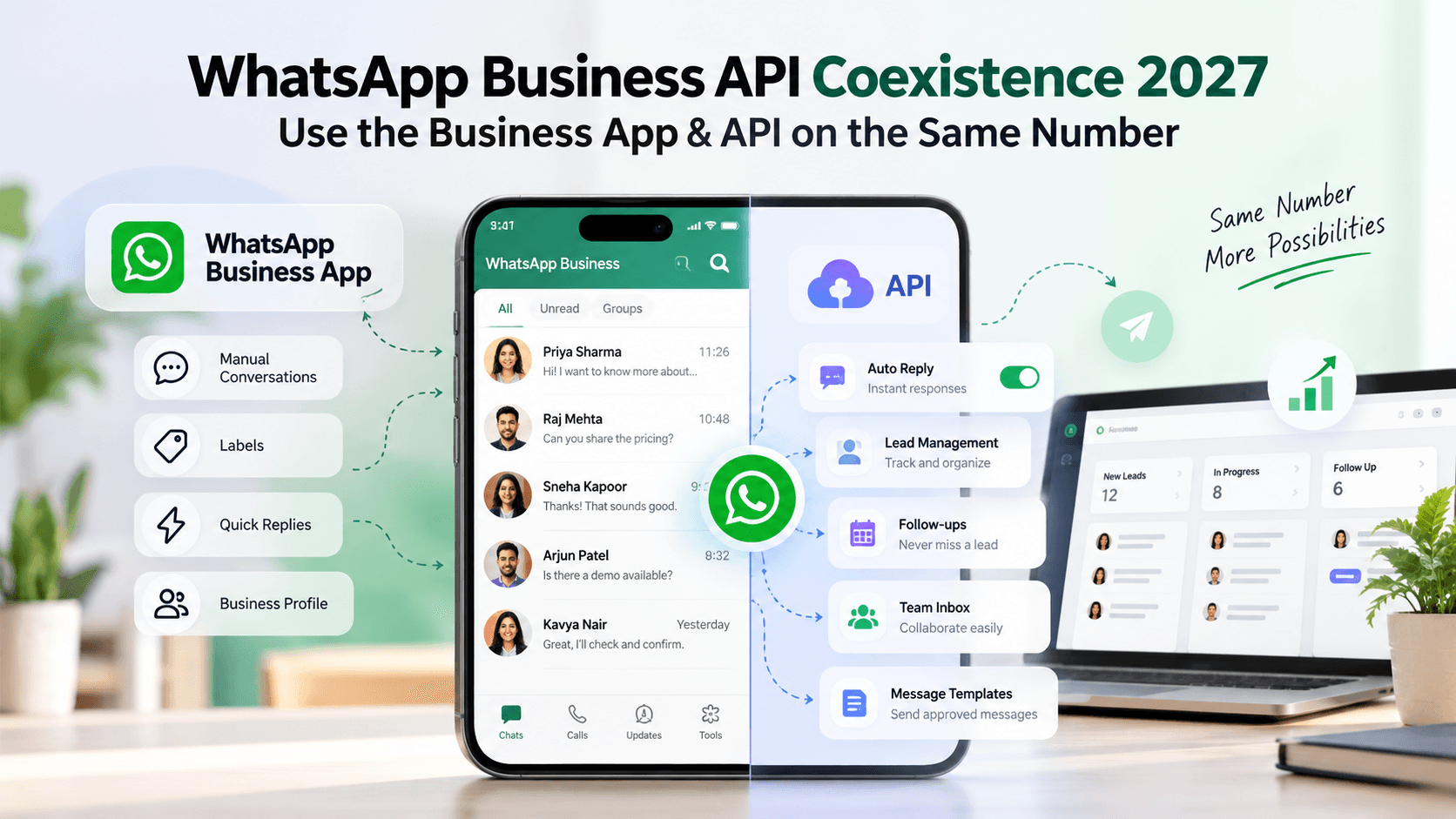
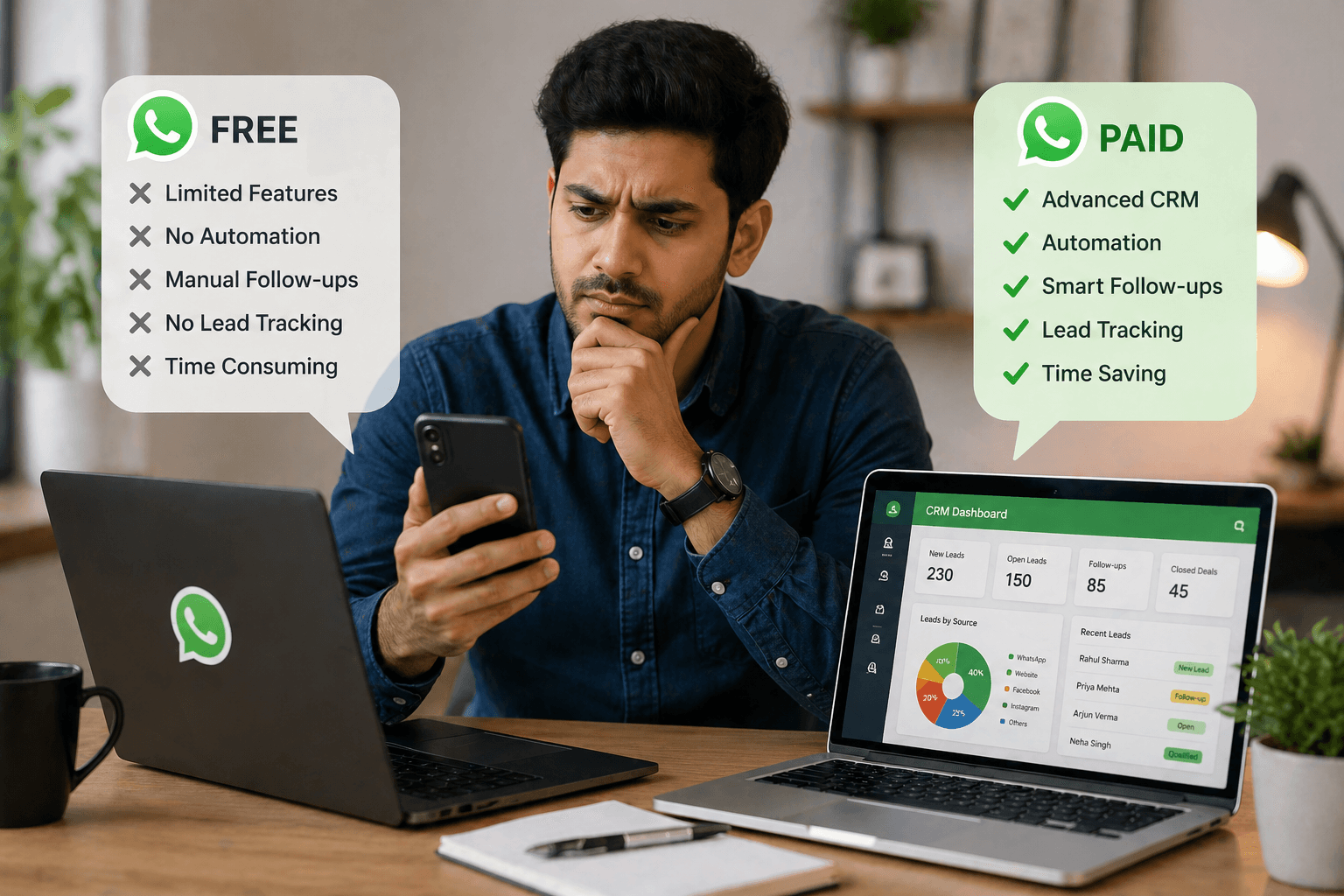
WhatsApp Messages Not Delivering? Reasons & Fixes for Businesses
 Abhyank Srinet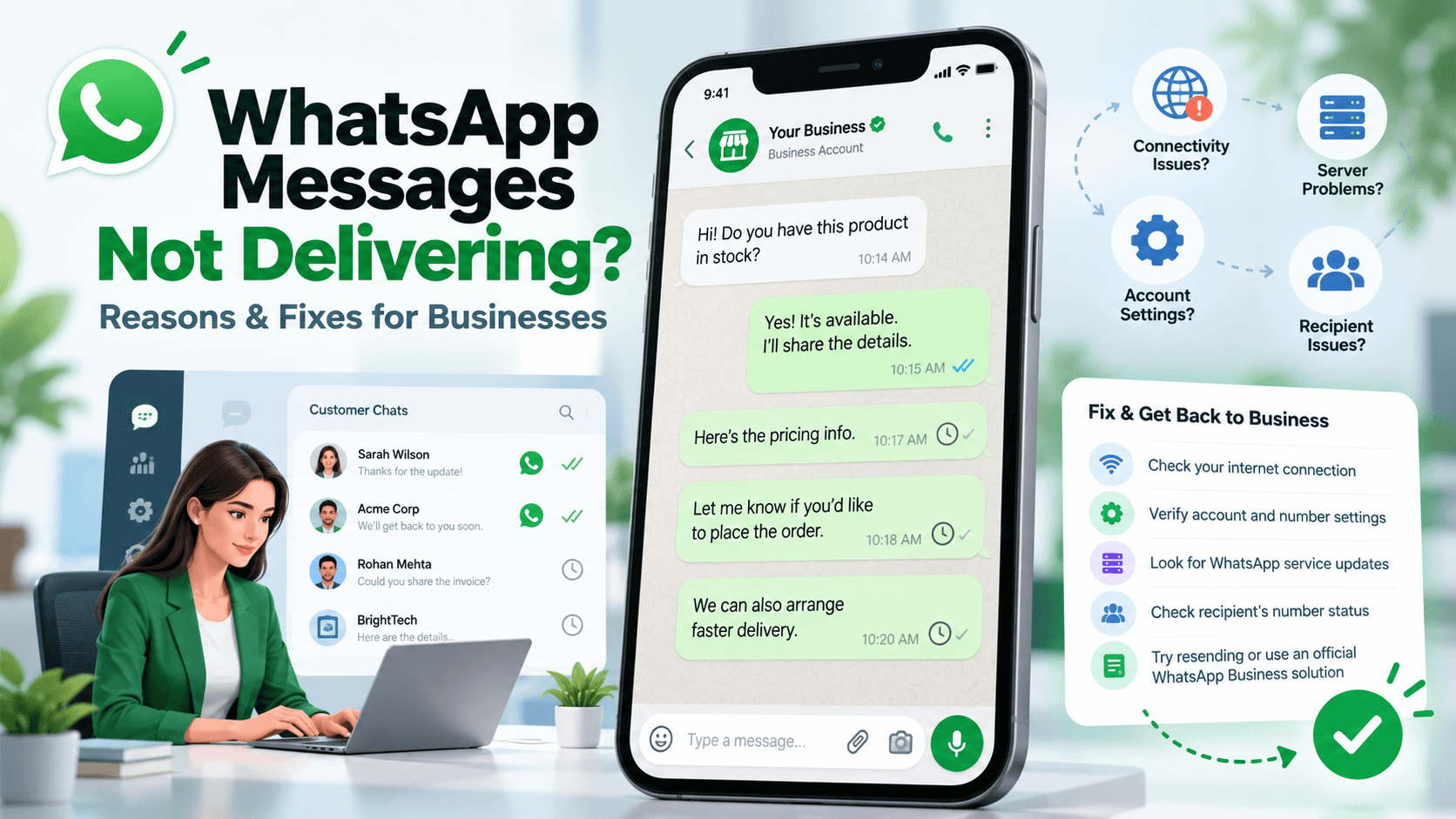
Quick Answer
WhatsApp messages not delivering can happen when a customer is offline, their number is wrong or your connection fails. Businesses using the WhatsApp API should also check templates, account limits and the 24-hour reply window. Start with the message status, find the cause and check it before sending again.
Introduction
You send a customer a price quote and wait for a reply. A day passes, then another. Your team assumes the customer has lost interest, but the message still shows one grey tick. The customer never received your quote. This small detail is easy to miss when your team handles new leads, reminders and follow-ups throughout the day.
WhatsApp messages not delivering can leave both sides waiting. Your team thinks it has replied, while the customer thinks nobody has helped them. The fix depends on what went wrong and how you sent the message. This guide covers the main causes, simple checks and the extra rules that apply to WhatsApp Business API messages.
What Does “Sent but Not Delivered” Mean on WhatsApp?
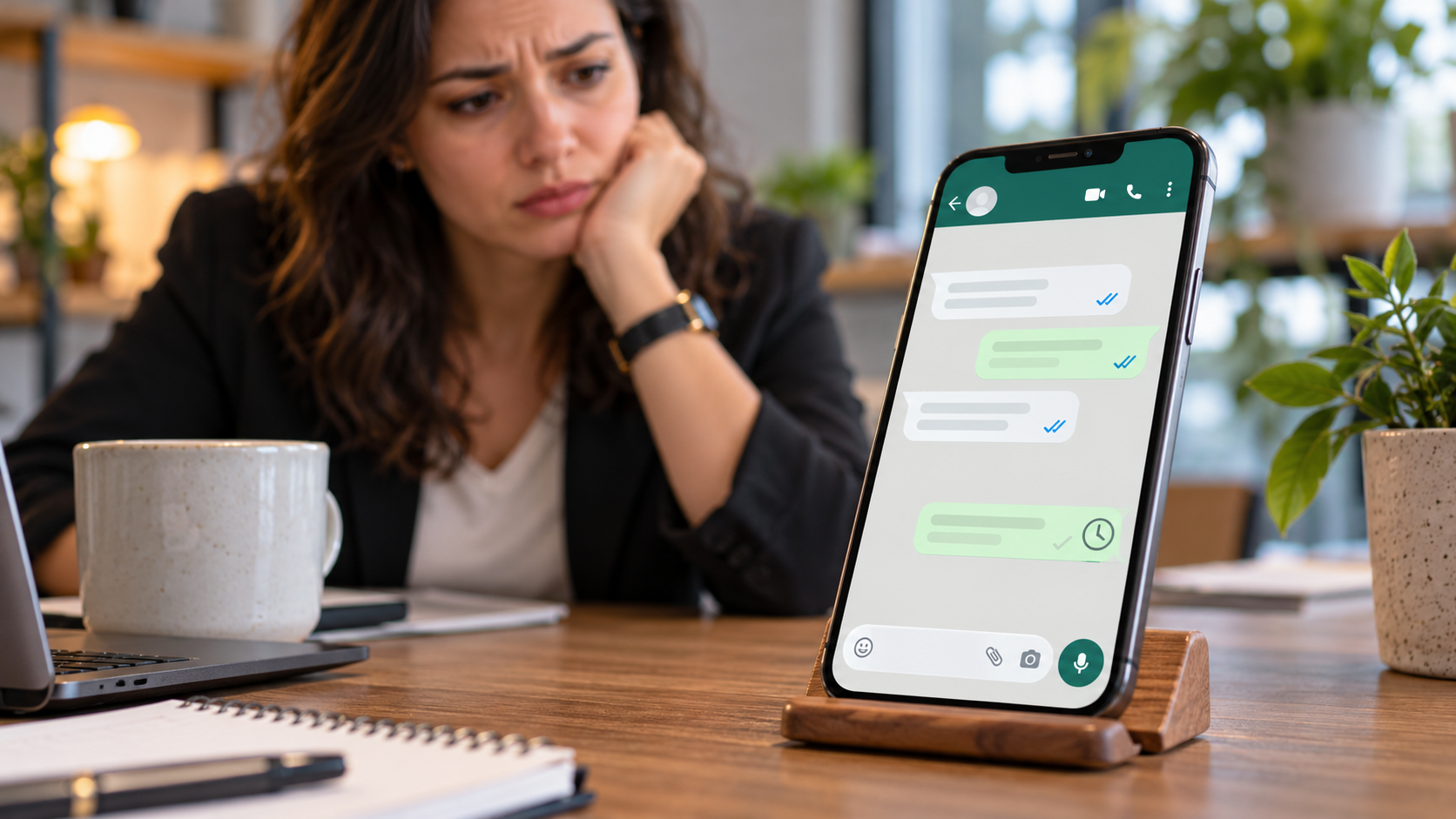
“Sent” means your message has left your side, but it does not confirm that the customer received it. “Delivered” means it reached their phone or a linked device. A message can be delivered without being read, and a customer can read it without replying. These are separate steps, so check the status before deciding what to do next.
The symbol beside the message gives you a useful starting point. Here is what each symbol means in an individual chat.
Message Symbol | Meaning | What to Do |
|---|---|---|
Clock icon | Waiting to send | Check your internet |
One grey tick | Sent, but delivery is not confirmed | Check possible delivery issues |
Two grey ticks | Delivered | Give the customer time to respond |
Two blue ticks | Read, where read receipts apply | Follow up when it makes sense |
Does One Grey Tick Mean You Are Blocked?
One grey tick does not prove that the customer blocked you. Their phone may be off, or they may have no internet on any linked device. Blocking is one possible cause, but the tick does not tell you which cause applies. Avoid treating it as proof that someone no longer wants to hear from your business.
Is an Undelivered Message the Same as an Unread Message?
An undelivered message has not reached the customer. An unread message may already be in their chat, waiting to be opened. Also, missing blue ticks do not prove that a message is unread because people can turn read receipts off. The WhatsApp Help Centre explains common sending and receiving problems.
Why Are Your WhatsApp Messages Not Delivering?
First, check whether the problem affects one customer or several. When other chats work, the issue may relate to that customer’s number or connection. When messages fail across several chats, check your own connection and business account. This first check helps you avoid spending time on the wrong fix.
The Customer Is Offline
A customer may be travelling, have poor network coverage or have a phone with no battery. Your message may stay undelivered until one of their devices connects again. In this case, waiting is often the right step. Sending the same message several times will not help them get online sooner.
The Number Is Wrong or Outdated
A small typing error can stop your message from reaching the right person. Customers may also change numbers without updating an old enquiry form. Compare the number with the details they gave you. For Indian contacts, check that +91 is correct and has not been added twice by your CRM.
The Customer May Have Blocked Your Number
A block can prevent delivery, but WhatsApp does not give you a clear notice that confirms it. Check whether the customer has asked your team to stop sending messages. Respect that choice if they have. Using another number to get around a block is not a suitable way to fix a delivery issue.
Your Connection or Application Has a Problem
Messages stuck on the clock icon may point to a problem on your side. Check whether other websites load and whether WhatsApp needs an update. Restarting the application may also help. Avoid deleting its data or reinstalling it before checking that your chats are backed up.
How Can You Fix WhatsApp Messages Not Delivering?
Work through the checks below in order. Start with the message status, then check your connection and contact details. This approach is easier than changing several settings at once. Businesses that send messages through software should also check the error shown in their provider’s dashboard.
Check Whether Other Messages Are Delivered
To find the cause of WhatsApp messages not delivering, open a few recent chats and compare their status. If other recent messages have two grey ticks, focus on the affected contact first. When several chats show a clock icon, check your internet before making other changes.
Test Your Internet and Restart WhatsApp
Open a website to see whether your connection works. Try switching between Wi-Fi and mobile data, then reopen WhatsApp. Install any available update from the official application store. These steps may fix a local problem, but they will not remove a business account restriction.
Check the Number Before Trying Again
Confirm the full number and country code using details the customer provided. Do not guess a correction, especially when sending quotes, booking details or payment requests. You could send private information to the wrong person. Update the contact only after you have checked the correct number.
Check the Status Before Resending
A message may arrive while your team is checking the problem. Look at its latest status before sending another copy. This matters when a customer could mistake two reminders for two bookings or payment requests. A customer not replying is not, by itself, a reason to resend the same message.
Why Are WhatsApp Business Broadcast Messages Not Delivered?
Traditional broadcast lists have rules that differ from one-to-one chats. A customer may receive your direct reply but miss a message sent through a broadcast list. Before you act, check whether your team used a broadcast list in the Business app or an API campaign. The checks are different for each.
Have Customers Saved Your Number?
For traditional WhatsApp Business broadcast lists, customers need to save your number in their address book to receive the broadcast. WhatsApp covers this in its broadcast-list guide. Explain this when customers sign up for updates. Remember that saving your number does not, on its own, mean they agreed to receive marketing messages.
Was the Message Sent Through the API?
API campaigns need checks for templates, account notices and limits on marketing messages. The saved-number rule for traditional lists does not explain every API failure. Ask your team which method it used, then review the relevant report. This avoids asking customers to change something that will not solve the problem.
Why Are WhatsApp Business API Messages Not Delivering?

The WhatsApp Business API lets business software send and manage WhatsApp messages. A CRM, for example, may use it to send a booking reminder. This adds another set of checks beyond your phone’s connection. A send request being accepted does not mean the message was delivered, so review its final status.
The 24-Hour Reply Window Has Closed
A customer’s message opens or refreshes a 24-hour customer service window. During that time, businesses can send free-form API replies. Outside it, they must use an approved template. This rule applies to the Business Platform, not ordinary manual chats in the Business app. See the WhatsApp Business Messaging Policy for the rules.
The Template Has Missing or Incorrect Details
A template is an approved message format with spaces for details such as a name or date. These spaces are called variables. Check that every required value is supplied and that the right language is selected. Also check the template’s current status, because a previously approved template may later be paused or disabled.
A Marketing Limit or Account Issue Applies
Meta may restrict a marketing message to one customer while other messages still go through. Check its per-user marketing template limits and review your account notices. Also look for billing alerts from your provider. Repeated send attempts will not resolve a restriction or an unpaid balance.
What Do WhatsApp Delivery Error Codes Mean?
An error code gives your team a more useful starting point than “message failed.” Save the code and the full error text, since some codes have more than one possible cause. Your provider can use these details to help. The WhatsApp API error guide gives further information.
The following table covers four codes that businesses may see when checking failed messages.
Error Code | Meaning | Next Step |
|---|---|---|
131026 | Message could not be delivered | Check the number and whether the customer can receive messages |
131047 | Re-engagement message required | Use an approved template outside the reply window |
131049 | Meta chose not to deliver | Review marketing restrictions; avoid repeated immediate retries |
132000 | Wrong number of template values | Supply all values required by the template |
For example, imagine a booking reminder that needs both a name and a date. Your software sends the name but leaves out the date. The fix is to add the missing value before trying again. Checking the customer’s internet would not solve that error. This is an illustrative example, not a reported customer case.
How Can Businesses Reduce WhatsApp Delivery Failures?
Your team cannot control a customer’s internet access, but it can check contact details and catch failed messages sooner. Give someone responsibility for reviewing important quotes and reminders. Automation can help organise this work, but it cannot guarantee delivery. A task marked “sent” still needs attention when the message fails.
Keep Contact Details and Consent Records Updated
Record how customers agreed to receive messages and honour requests to stop. A number shared for one enquiry should not be added to every future campaign without the right permission. Keep your records clear so the team knows what each customer expects. Use the WhatsApp Business Messaging Policy when planning proactive messages.
Make Each Follow-Up Useful
Send a requested quote, answer a question or confirm a next step. These messages give the customer a clear reason to respond. Repeated “Any update?” messages can become tiring, especially when they add no new information. Kraya’s guide to automating WhatsApp follow-ups covers ways to organise this work.
Review Failed Messages Regularly
Look for patterns rather than treating every failed message as a separate problem. One template failing often may point to missing values or a status issue. Kraya’s scheduled messages guide explains its free-form and approved-template API options.
Keep the review focused on information your team can act on:
Messages sent, delivered and failed.
Error codes that appear often.
Templates with repeated failures.
Customers who asked to stop receiving messages.
When Should You Contact Support?
Contact support when basic checks do not help, several valid contacts are affected or your account shows a restriction. API users should usually start with their messaging provider. Share the message ID, error code, sending time and template name so they can investigate. Use a secure support channel and keep passwords or access tokens out of screenshots.
Conclusion
WhatsApp messages not delivering does not always mean your account has a problem or a customer has blocked you. Check the message status, see who is affected and follow the relevant steps. For your team, the most useful habit is checking delivery before closing an important follow-up task. A quote marked “sent” has not done its job until it reaches the customer waiting for it.