WhatsApp Template Rejected? Reasons, Fixes & Examples
 Abhyank Srinet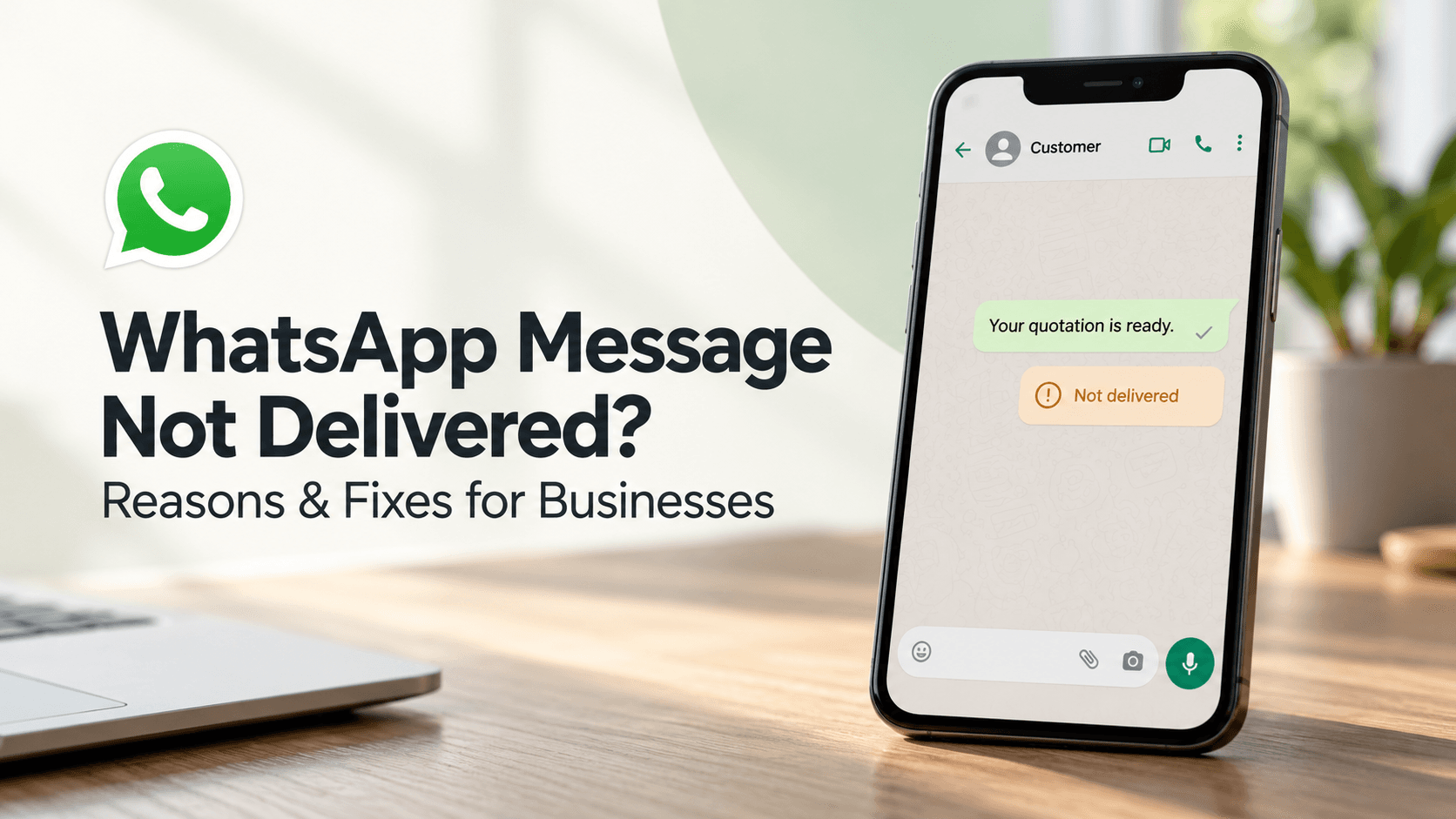
Quick Answer: A “WhatsApp template rejected” status means your template did not pass review. Common causes include variable errors, unclear content, duplicate text and policy issues. Read the rejection reason in WhatsApp Manager, fix the issue and resubmit. If you think the decision is wrong, request a review. A category change does not always mean rejection.
Introduction
Seeing “WhatsApp template rejected” just before sending a customer update can disrupt your plans. Your team may have an appointment reminder ready or an order update waiting to go out. Now someone has to find the issue and correct it before that template can be used. The rejection notice is the best place to start, even when the message looks fine at first glance.
Changing a few words without checking the reason can leave the actual problem unresolved. A clearer approach is to review the message, fix the reported issue and check the final preview. This guide covers rejection reasons, practical fixes, message examples, appeals and a checklist for your next submission.
Why Was Your WhatsApp Message Template Rejected?

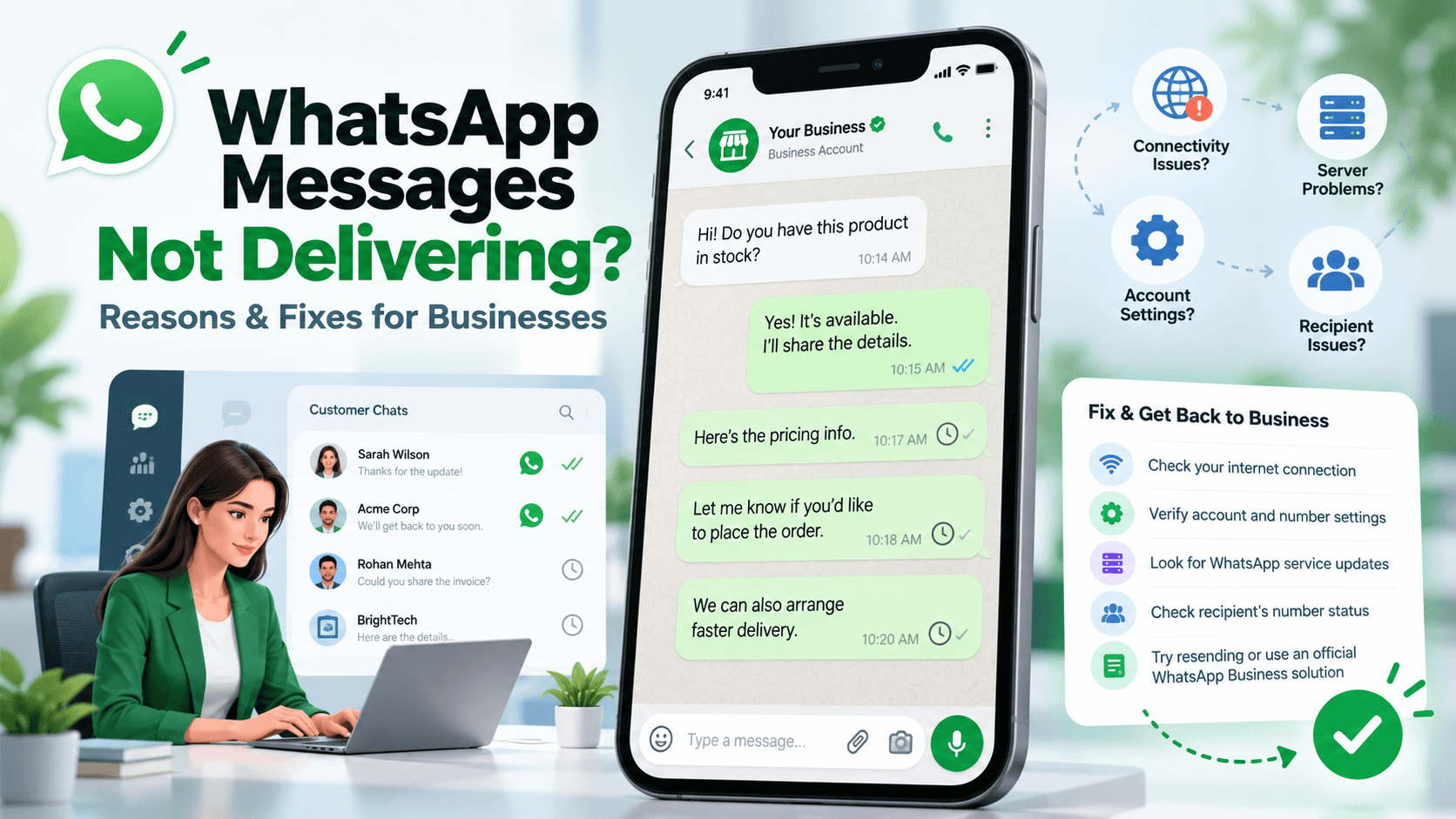
A WhatsApp template rejected during review may contain a formatting error or content that breaks the platform’s rules. Missing context and duplicate wording can also cause problems. Check the reason shown for your template before deciding what to change. The table below gives you a starting point, while the sections that follow explain each issue.
Issue | What to Check | Next Step |
|---|---|---|
Variable errors | Brackets, numbers and placement | Fix the placeholders |
Category mismatch | Message purpose and current category | Check category and status separately |
Unclear content | Message context and sample values | Add useful details |
Policy issue | Wording and business activity | Review the relevant rule |
Duplicate text | Existing templates | Check whether one already fits |
Incorrect or Missing Template Variables
Variables hold details that change between customers, such as names or order numbers. Numbered variables use double curly brackets: {{1}}, {{2}} and so on. Missing brackets or skipped numbers can cause errors. A variable at the start or end of the message can also cause problems. Use fixed text around each placeholder so the reader knows what the value means.
Content Does Not Match the Template Category
Templates fall into Marketing, Utility or Authentication categories. A purchase update and a discount offer have different purposes, even when both go to existing customers. Meta may change a promotional template from Utility to Marketing. Check the category and status separately, because a category change does not always mean the template was rejected.
For a detailed explanation of these categories and their requirements, read our guide to WhatsApp message templates
Missing Samples or Unclear Message Content
Sample values help reviewers understand the completed message. For an appointment reminder, use fictional names, dates and times that fit the text. “20 November 2026” explains a date field better than “test.” The message itself also needs context. A line such as “Your update is ready” leaves the reader wondering which order, booking or service it refers to.
Content Breaks WhatsApp Policies
A message can create policy issues if it requests sensitive details, makes misleading claims or supports a prohibited activity. For example, businesses must not ask customers to share full payment card numbers. Check the WhatsApp Business Messaging Policy before making changes. Softer wording will not resolve a problem with a business activity that the policy does not allow.
Duplicate Template Content
A template with the same body and footer as an existing one may fail the duplicate check. Changing its name does not change the message content. Search your account before creating another version, and review whether the existing template serves the same purpose. This also helps your team avoid managing several templates that do the same job.
How to Check Your WhatsApp Template Rejection Reason
When you see “WhatsApp template rejected,” open that template’s details in WhatsApp Manager. Your messaging provider may also show the decision in its dashboard. Check the right business account and language version, especially if your team manages several accounts. Follow these steps before editing anything.
Open WhatsApp Manager and select your business account.
Go to the message templates section.
Find the rejected template and its language.
Open the status or rejection details.
Save the reason with a copy of the submitted message.
Menu labels can vary. If the explanation is unclear, check the related notification or ask your provider for help. Share the template name and ID so support can find the right submission. Kraya users can refer to the WhatsApp API integration guide for help with template management in their setup.
If you're new to API-based messaging, our WhatsApp Business API guide explains how template approval fits into business messaging.
How to Fix a Rejected WhatsApp Message Template
To resolve a WhatsApp template rejected during review, correct the reported issue and then read the whole message again. Keep a copy of the original version so you can track your changes. This is especially useful when one person writes templates and another manages submissions.
Match Your Changes to the Rejection Reason
Start with the issue named in the notice. If the problem concerns variables, check the brackets and numbering first. Rewriting every sentence can make it harder to see which change solved the problem. Record the rejection reason, your correction and the submission date in a shared note so colleagues can follow what happened.
Check Variables and Add Sample Values
Fill each variable with a realistic fictional value and read the result aloud. Does the date appear beside the appointment? Does the order number appear in the right place? The examples in this guide use numbered placeholders, but your editor may support other formats. Follow its requirements and make sure the sample values match the fields.
Choose the Category That Fits the Message
Choose the category based on the message’s purpose, not just who receives it. An existing customer can still receive a Marketing message. If an order update also includes a discount offer, the combined content is Marketing. If your goal is only to confirm an order, keep the wording focused on that transaction.
Make the Message Clear and Respectful
Tell the customer why you are contacting them. Name the relevant booking, purchase or service instead of expecting them to remember an earlier chat. Remove claims you cannot support and wording that puts unfair pressure on the reader. A useful editing test is to ask: “Would the customer understand this message without asking what it means?”
Review the Preview and Resubmit
Check the final preview, including the language, samples, buttons and any media. After resubmitting, monitor the status before restarting messages that use the template. Teams using Kraya’s automated follow-ups should check the affected API template steps before resuming a sequence. This helps avoid restarting a workflow while its required template is still unavailable.
WhatsApp Template Rejection Examples and Suggested Fixes
The examples below show how to improve wording or formatting after a WhatsApp template rejected notice. They use fictional businesses and are suggested fixes, not approved templates. Some examples address clarity rather than a guaranteed rejection cause. Use the actual review reason to decide which changes your message needs.
Order Update With Incorrect Variables
The first message has mismatched brackets and skips a variable number.
Before:
Hi {1}, your order {{3}} has shipped.
Suggested Fix:
Hi {{1}}, your Northline Store order {{2}} has shipped. You can check its progress in your account.
Use “Ananya” and “NL4821” as sample values. The revision fixes the placeholders and identifies the store. Keep the account-tracking sentence only if customers can actually check delivery progress there.
Promotional Offer Submitted as Utility
This message mixes an order update with a new purchase offer.
Before:
Your order is confirmed. Buy again today and get 20% off!
Suggested Utility Version:
Northline Store has confirmed your order {{1}}. We expect to deliver it on {{2}}. Thank you for shopping with us.
The revision removes the promotion and focuses on the existing order. If you want to keep the discount, submit the message under the appropriate Marketing category instead.
Appointment Reminder With Missing Context
A reminder should help the customer recognise the booking without searching older chats.
Before:
Hi {{1}}, your appointment is tomorrow. Be ready.
Suggested Fix:
Hi {{1}}, your consultation with BrightPath Advisors is scheduled for {{2}} at {{3}}. Please reply if you need to change the time.
Sample values could be “Rohan,” “20 November 2026” and “3:00 PM IST.” A specific date makes the reminder clearer than “tomorrow,” particularly if sending is delayed.
Payment Reminder With Threatening Wording
A payment reminder should state the facts and give the customer a way to ask for help.
Before:
Pay now or we will publicly list your name.
Suggested Fix:
Hello {{1}}, your Northline Store purchase invoice {{2}} is due on {{3}}. Please ignore this reminder if you have paid. Contact our support team if you need help.
This example concerns an ordinary purchase invoice. It does not make prohibited debt-collection activity acceptable. The business activity must also meet WhatsApp’s rules.
You can also explore these WhatsApp payment reminder messages for examples of polite invoice reminders and payment updates.
How to Appeal a Rejected WhatsApp Template
You can request a review if you believe the WhatsApp template rejected decision is wrong. Explain why the message meets the rules rather than asking for urgent approval without context. Open Meta Business Support Home, select the relevant account and locate the template issue. Use the review option available for that decision.
Prepare the following details so the reviewer can understand your request.
Template name and ID.
Language and selected category.
Exact rejection reason.
Purpose of the message.
Sample values showing the completed text.
Keep the explanation specific. For a booking confirmation, describe the customer’s booking action and what the message confirms. Monitor the review status and avoid promising your team a launch date before the decision arrives.
Checklist Before Submitting Your WhatsApp Template
Before sending a WhatsApp template rejected submission back for review, read it as a customer would. Check that the business, purpose and next step are clear. Use the checklist below to catch avoidable mistakes and make sure your edits address the original problem.
The category fits the message’s purpose.
Variables use the supported format.
Sample values match each field.
Dates and business details are accurate.
Links and buttons work.
Existing templates have been checked for duplicates.
The wording and business activity meet the relevant rules.
Template approval does not replace customer permission. Obtain the required opt-in and respect requests to stop receiving messages.
Conclusion
A WhatsApp template rejected notice gives you a starting point for fixing the message. Read the reason, make a targeted change and check the completed preview before resubmitting. Keep a record so your team can learn from each correction. If the decision appears wrong, request a review with clear context. Once the template is available, check the customer list and follow-up settings before using it.