How to Create a WhatsApp Broadcast List: Android, iOS & Web Guide (2026)
 Abhyank Srinet
What Is a WhatsApp Broadcast List and Why Do You Need One?
A WhatsApp broadcast list is a saved group of contacts you can message simultaneously — without them seeing each other. When you create whatsapp broadcast list, you're essentially building a private bulk messaging channel inside WhatsApp. One tap sends your message to everyone on the list, and replies come back to you individually. It's the simplest way to mass message contacts without creating a group chat. Not sure if broadcast is right for you? See our broadcast vs individual message comparison.
For businesses, broadcast lists replace the painful process of copy-pasting the same message to 50, 100, or 200 contacts one by one. A coaching institute in Rajouri Garden can create one for each batch, a property dealer in Hadapsar can maintain separate contact lists for 2BHK and 3BHK buyers, and a D2C brand can segment opted-in VIP customers from first-time buyers.
Each WhatsApp broadcast list holds up to 256 contacts. You can create unlimited lists, but every recipient must have your number saved in their contacts — otherwise the message won't deliver. See the WhatsApp official broadcast FAQ for full details.
How to Create a WhatsApp Broadcast List on Android (Step-by-Step)
You can create whatsapp broadcast list on Android in under 2 minutes. Here's the exact process — no third-party apps needed, no technical setup required.
- Open WhatsApp and make sure you're on the Chats tab
- Tap the three-dot menu (⋮) in the top-right corner
- Select "New broadcast" from the dropdown menu
- Search and select contacts — tap each contact you want to add. You can select up to 256 contacts per list. Use the search bar to find specific people faster.
- Tap the green checkmark (✓) at the bottom-right to create the list
- Your broadcast list is ready — you'll see it appear in your Chats tab with a broadcast icon (📢)
Pro tip: Name your broadcast list immediately after creating it. Tap the list name at the top → tap the pencil icon → enter a descriptive name like "Coaching Batch 14 - Mukherjee Nagar" or "3BHK Buyers Baner". Managing 5+ unnamed "Broadcast List" entries is a nightmare.
How Do You Name a Broadcast List on Android?
After you create your WhatsApp broadcast list, it gets a default name like "Broadcast List." To rename it: open the list → tap the list name at the top → tap the pencil/edit icon → type your custom name → tap the checkmark to save. Names can be up to 25 characters.
How to Create a WhatsApp Broadcast List on iPhone (iOS)
The process to create whatsapp broadcast list on iPhone is slightly different from Android — the entry point is in a different location.
- Open WhatsApp and go to the Chats tab
- Tap "Broadcast Lists" in the top-left corner of the screen (this is where Android uses the three-dot menu)
- Tap "New List" at the bottom
- Search and select contacts — same 256-contact limit as Android
- Tap "Create" to build the list
| Step | Android | iPhone |
|---|---|---|
| Entry point | Three-dot menu (⋮) → New broadcast | "Broadcast Lists" button (top-left) |
| Contact selection | Checkbox multi-select | Tap-to-add with search |
| Confirm creation | Green checkmark (✓) | "Create" button |
| List location after | In main Chats tab | Under Broadcast Lists screen |
| Edit/rename | Tap list name → pencil icon | Tap list name → Edit List |
Can You Create a Broadcast List on WhatsApp Web or Desktop?
No — you cannot create a new WhatsApp broadcast list on WhatsApp Web or the desktop app. This is a limitation most guides don't mention. List creation is mobile-only (Android or iPhone).
However, once you create a broadcast list on your phone, it syncs to WhatsApp Web automatically. You can then send messages to that list from your computer — which is faster for typing long messages.
The workflow for desktop users: create your WhatsApp broadcast list on your phone once, then use WhatsApp Web daily for composing and sending messages. You get the speed of keyboard typing with the broadcast functionality of the mobile app.
How Do You Edit, Add, or Remove Contacts from a Broadcast List?
You don't need to delete and recreate a broadcast list every time your contacts change. Here's how to modify an existing list:
How to Add Contacts to an Existing Broadcast List
- Open the broadcast list from your Chats tab
- Tap the list name at the top to open list info
- Tap "Edit recipients" (Android) or "Edit List" (iPhone)
- Search and select new contacts to add
- Tap the checkmark or "Done" to save
Remember: you can't exceed 256 contacts per list. If you need more, you'll need to create a WhatsApp broadcast list for each segment — one for "VIP Customers" and another for "New Leads", for example.
How to Remove Contacts from a Broadcast List
- Open the broadcast list → tap list name → list info
- Scroll to the contacts section
- Tap the contact you want to remove
- Select "Remove from broadcast list"
Clean your lists monthly. For more on sending best practices, see our guide to sending WhatsApp broadcast messages. Remove contacts who haven't responded to your last 3 broadcasts — they're either not receiving your messages (haven't saved your number) or not interested. Keeping dead contacts hurts your sender reputation with WhatsApp's algorithm — and at scale, could get your number flagged. See our guide on how to prevent WhatsApp from getting banned for the full breakdown.
How Do You Delete a WhatsApp Broadcast List?
If a broadcast list is no longer needed — a completed batch, a finished campaign, or a segment you've merged into another list:
- Open the broadcast list
- Tap the list name at the top
- Scroll to the bottom of list info
- Tap "Delete broadcast list" (Android) or "Delete List" (iPhone)
Deleting a list removes it from your Chats tab, but messages already sent remain in recipients' individual chats. They can still reply. For the full overview of everything broadcast can do, see our complete WhatsApp broadcast guide.
What Are the Best Practices for Organising Broadcast Lists?
The difference between businesses that get 5% reply rates and those that get 30% usually comes down to how they organise their lists — not what they write. Before you create whatsapp broadcast list for your next campaign, plan your segmentation. Smart list management means each contact gets messages relevant to them, not generic bulk messages.
How Should You Segment Your Broadcast Lists?
| Business Type | List 1 | List 2 | List 3 |
|---|---|---|---|
| Coaching Institute | Current Batch Students | Demo Attendees (Not Enrolled) | Alumni / Past Batches |
| Real Estate | Active Buyers (₹50L-1Cr) | Active Buyers (₹1-2Cr) | Investors / Plot Buyers |
| D2C Brand | VIP Repeat Customers | First-Time Buyers | Cart Abandoners |
| Clinic / Healthcare | Regular Patients | New Patients (Last 30 Days) | Overdue Checkup Reminders |
| Fitness / Gym | Active Members | Expiring Soon (7 Days) | Lapsed Members |
From our work with 600+ Indian businesses: segmented broadcast lists get 3x higher reply rates than unsegmented ones. A property dealer in Wakad sending 3BHK listings to 2BHK buyers gets blocked. The same dealer sending relevant listings to the right segment gets site visits.
What Naming Convention Should You Use?
Use a consistent format: [Category] - [Segment] - [Location/Detail]
- "Coaching - UPSC Batch 14 - Mukherjee Nagar"
- "Real Estate - 3BHK Buyers - Baner Pune"
- "D2C - VIP Customers - Repeat 3+"
- "Clinic - Overdue Checkup - 90+ Days"
This makes it instantly clear what each list contains when you have 10+ lists in your Chats tab. Once your lists are named, you'll want to understand the broadcast message limits before you start sending.
Why Isn't My Broadcast List Working? (Troubleshooting)
If you create whatsapp broadcast list but messages aren't reaching everyone, check these common issues:
| Problem | Cause | Fix |
|---|---|---|
| Messages show single tick only | Recipients haven't saved your number | Send a personal message asking them to save your number |
| Can't find "New broadcast" option | Using WhatsApp Web (creation is mobile-only) | Create the list on your Android or iPhone first |
| Can't add more than 256 contacts | WhatsApp's hard limit per list | Create a second list for the overflow contacts |
| List not showing on WhatsApp Web | Phone not connected to internet | Ensure your phone has active internet — Web mirrors your phone |
| Contacts removed from list automatically | They changed their phone number or deleted WhatsApp | Re-add with their new number, or remove if inactive |
For ready-to-use messages once your lists are set up, check our 15 WhatsApp broadcast message templates. If your lists consistently underperform, the issue is almost always contact quality — not the feature. Focus on getting contacts to save your number, segment by interest, and only broadcast content genuinely useful to that audience.
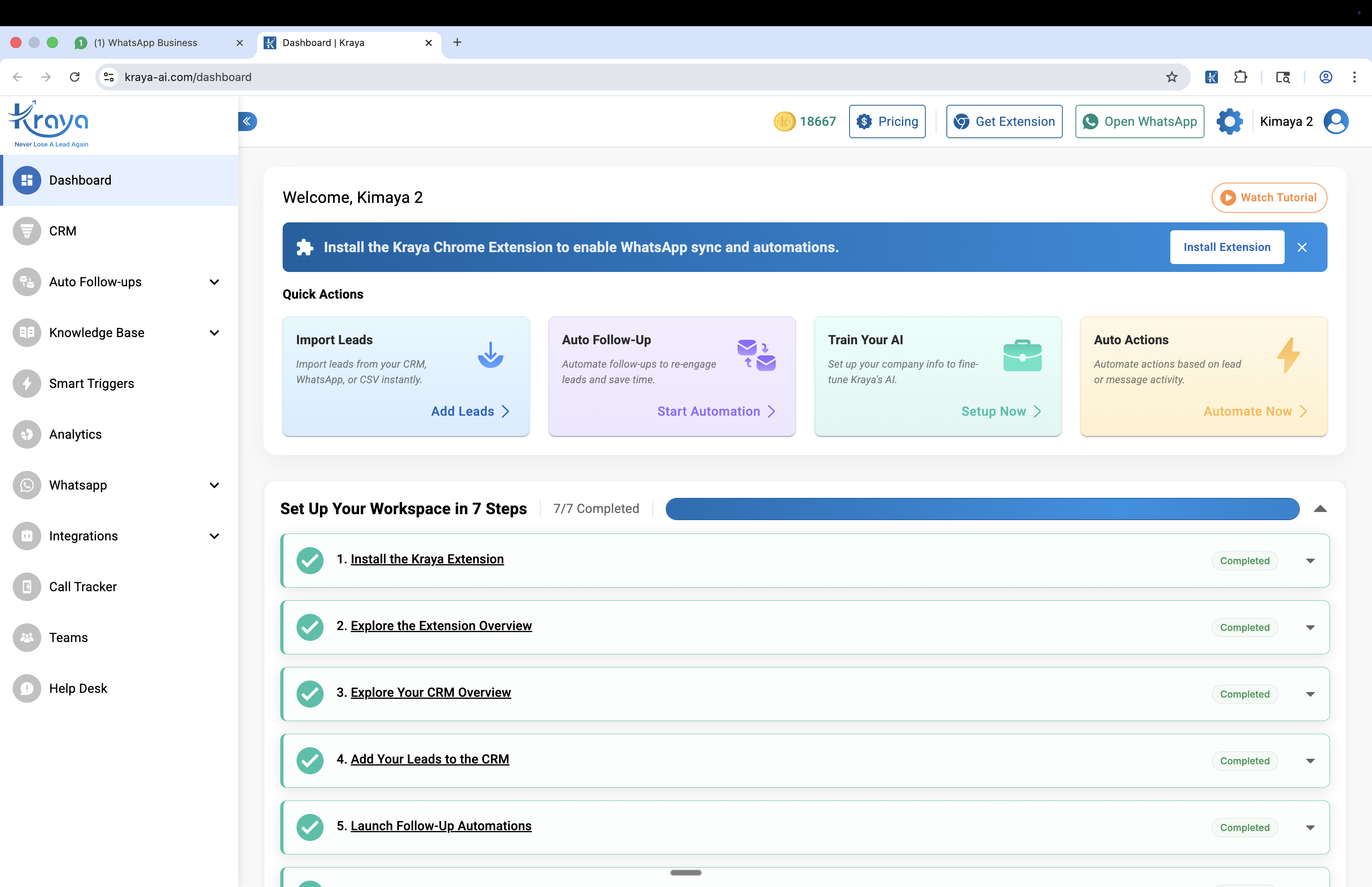
The screenshot above shows how Kraya handles this at scale — compliant automation with zero ban risk.
When Should You Stop Using Broadcast Lists and Upgrade?
WhatsApp broadcast lists work well up to about 500 opted-in contacts (2 lists). Beyond that, the manual effort outweighs the benefit — every time you create whatsapp broadcast list for a new segment, you're adding management overhead:
- Managing 3+ lists manually — you're spending more time on list hygiene than selling
- No automation after the broadcast — if someone replies "interested", there's no automatic follow-up sequence
- No analytics — you can't track which broadcast drove which sale
- Duplicate contacts across lists — no deduplication means some people get the same message twice
The hidden cost of broadcast lists isn't the 256-contact cap — it's the leads you lose because nobody followed up. From our work with 600+ Indian businesses, the average business loses 40% of interested broadcast replies because manual follow-up falls through the cracks.
Solutions like Kraya AI add AI-powered qualification, automated follow-up sequences, and CRM tracking on top of WhatsApp — so every broadcast reply gets handled, not just the ones you remember to check. For the full breakdown of limits and when to upgrade, see our WhatsApp broadcast limits guide.
See also: WhatsApp Ban for Automation: Which Tools Are Safe and Which Get You Banned
See also: How to Send Bulk WhatsApp Messages Without Getting Banned
See also: WhatsApp Business API: The 2026 India Guide
See also: WhatsApp Chatbot for Business: Complete Guide 2026
You might also find our best aisensy alternatives for whatsapp marketing in india guide useful.
You might also find our best gallabox alternatives for whatsapp automation in india guide useful.
You might also find our whatsapp crm integration guide: connect with your existing tools guide useful.
You might also find our best whatsapp marketing software for indian businesses guide useful.
Frequently Asked Questions

Written by
Founder & CEO, Kraya AI
Abhyank Srinet is the Founder and CEO of Kraya AI, a WhatsApp CRM and sales automation platform serving 600+ Indian businesses. He is also the founder of MiM-Essay, one of India's largest Masters admissions consulting firms.
More from Abhyank